Images, audio, and YouTube embeds are available with Buzzinga Pro.
Open the media controls
- Go to the Buzzinga homepage and find the board you want to change.
- Click the pencil Edit button on the board.
- Select the clue you want to edit.
- Choose the image, audio, or video icon. To show media after the clue is answered, choose a media type next to Correct Response instead.
The clue and correct response have separate media controls, so you can combine types. For example, you can show an image as the clue and use text for the correct response.
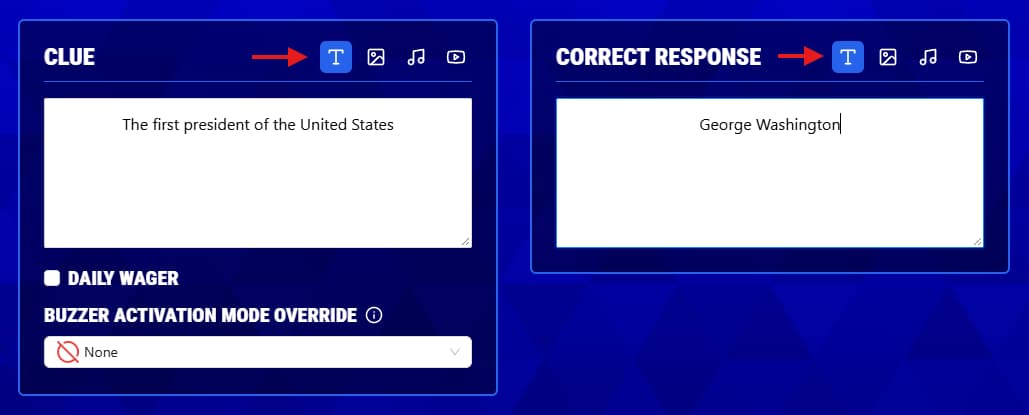
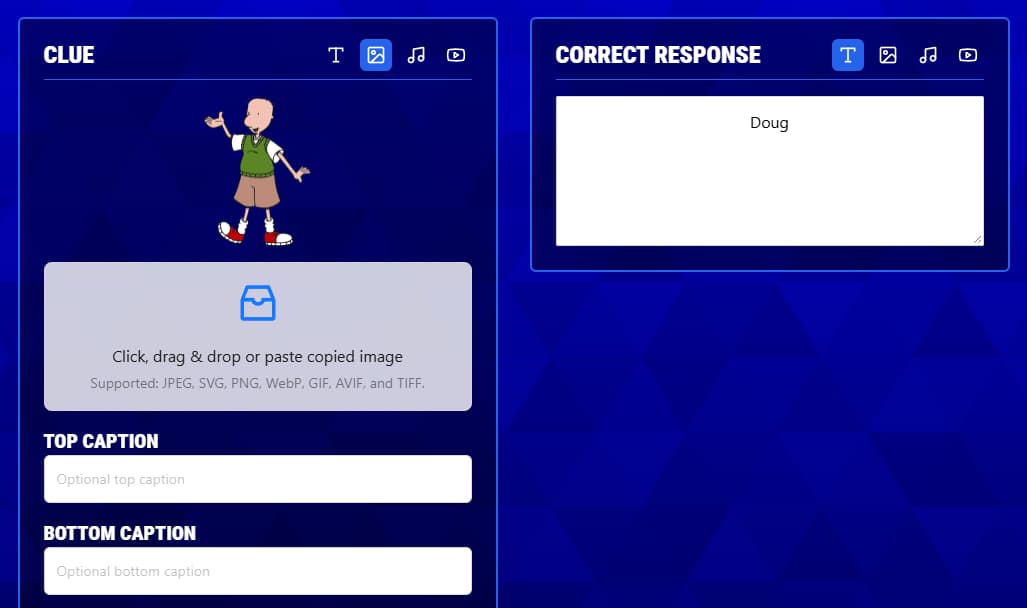
Add an image
- Choose the Image icon beside Clue or Correct Response.
- Click the upload area to choose an image, drag and drop a file into it, or paste a copied image when that option is shown.
- Wait for the image preview and the Image uploaded and saved! confirmation.
- Add an optional Top Caption or Bottom Caption if the image needs instructions or context.
Buzzinga accepts JPEG, SVG, PNG, WebP, GIF, AVIF, and TIFF images. To replace an image, upload a different file in the same area.
Add audio
- Choose the Audio icon beside Clue or Correct Response.
- Click the upload area or drag and drop your audio file.
- Wait for the audio player and the Audio file uploaded and saved! confirmation.
- Use the player to listen to the file before hosting your game. You can also add an optional top or bottom caption.
Audio files must be MP3 files and no larger than 10 MB. When the clue or correct response appears during a game, Buzzinga plays the audio from the host’s game board.
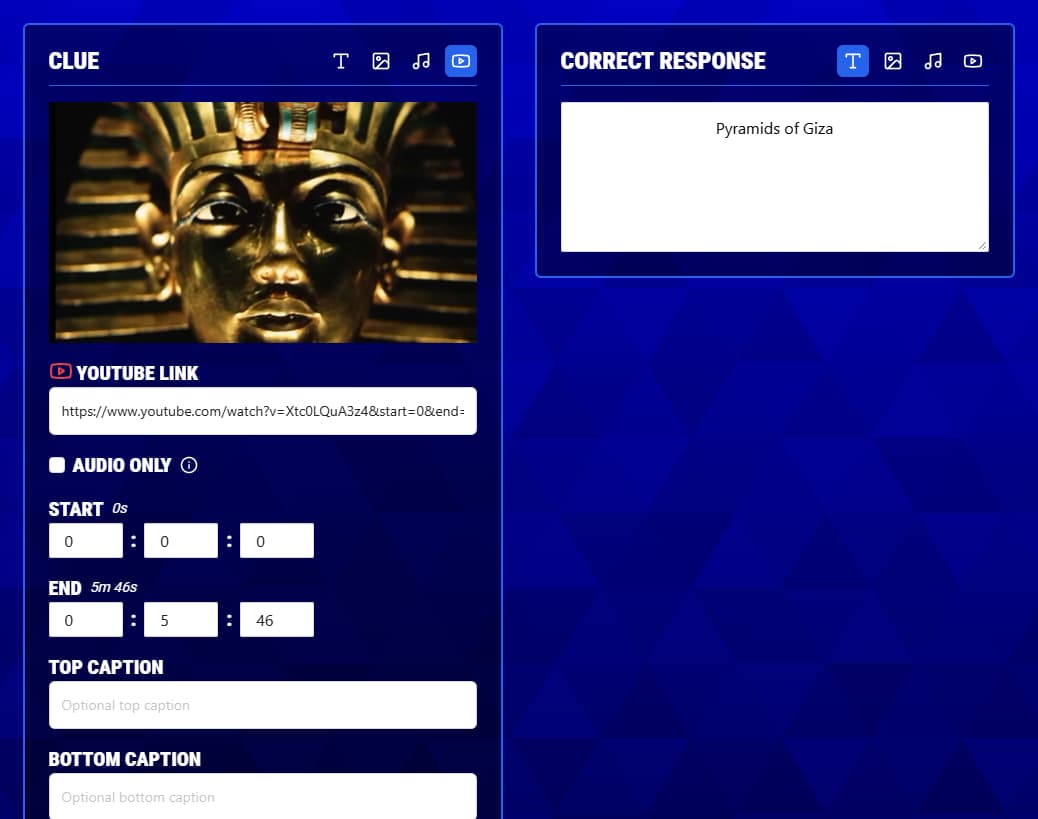
Add a video
- Choose the Video icon beside Clue or Correct Response.
- Paste a valid YouTube URL into YouTube Link. A preview will appear when Buzzinga recognizes the link.
- If you only want to play part of the video, set its Start and End times using the hour, minute, and second fields.
- Turn on Audio Only when you want players to hear the YouTube video without seeing it.
- Add an optional top or bottom caption.
Buzzinga embeds YouTube videos rather than uploading video files. If you see Not a valid YouTube URL, check the link and paste it again. The end time must be later than the start time.
Preview and test your media
Preview every media clue before hosting. Use the same computer, browser, display, speakers, and network you plan to use for the event.
- Check that images are clear from where your players will sit.
- Listen to the beginning and end of every audio clip and confirm the volume.
- Confirm that each YouTube video loads and that its start and end times are correct.
- If you will use the Host Controller, interact with the game board once before starting so your browser can allow audio and video playback.
Some workplace and school networks block YouTube embeds, so test videos on the event’s network ahead of time.