Creating categories with AI is available with Buzzinga Pro.
Open the AI category generator
- Go to the Buzzinga homepage and edit the board you want to update.
- Select the round you want to change at the top of the editor.
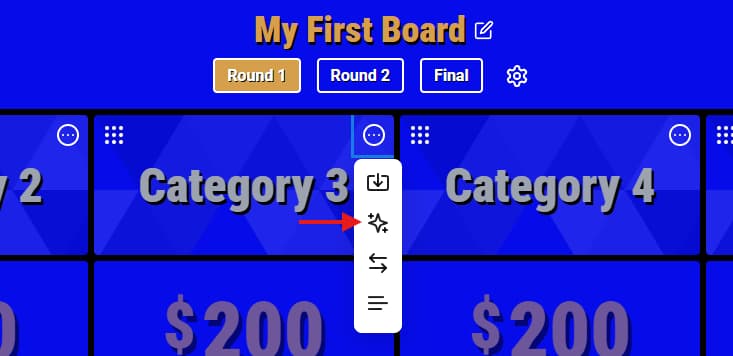
- Open the menu for the category column you want to fill.
- Choose Generate category with AI.
If the column is blank, the window opens as Create Category with AI. If the column already has a title or clues, it opens as Replace Category with AI. Nothing on your board changes until you review the draft and save it.
Write a useful prompt
In Describe the category, explain what the category should cover. Include the audience, difficulty, tone, and any topics or question styles to include or avoid.
For example:
US national parks for adult coworkers, medium difficulty. Mix geography, wildlife, and park history. Avoid trick questions.Animated movies released since 2000 for a family audience, easy to medium difficulty. Use clear, specific correct responses.Cloud computing basics for new software developers. Start with introductory clues and increase the difficulty. Avoid vendor-specific trivia.
Be specific enough to guide the results, but keep the prompt focused on one category. When you are ready, click Generate category.
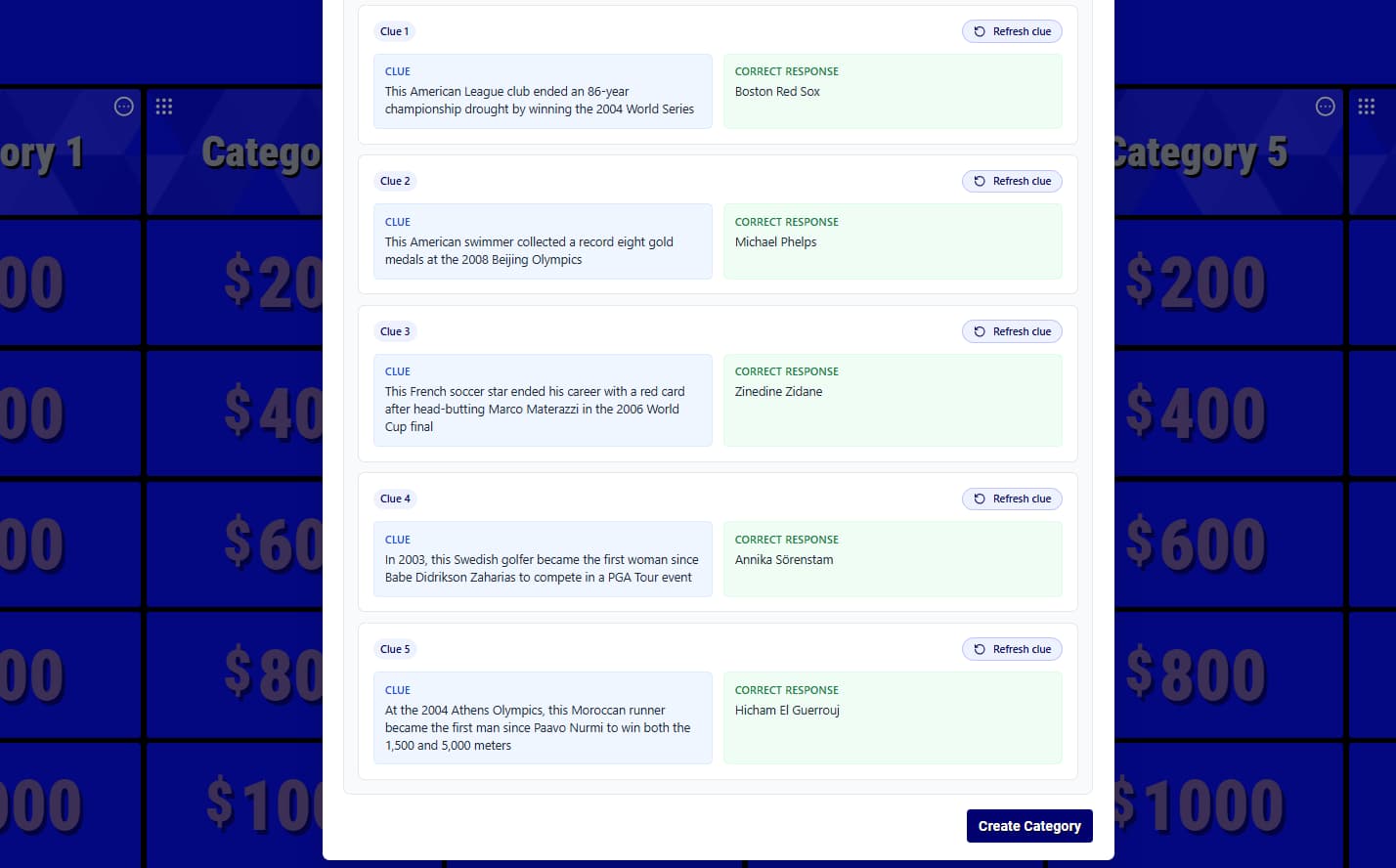
Buzzinga generates a draft with a category title and five text clue-and-response pairs. It may also suggest a category description. AI category creation is text-only, so requests for images, audio, or video are ignored. You can add media after saving the category.
Generation is usually complete within 30 seconds, and you can close the window while it finishes. When the draft is ready, select Review in the notification or reopen the category menu and choose Review AI draft.
Review the generated content
Before saving, review each part of the draft:
- Edit the Category title if needed.
- If Buzzinga generated a description, choose whether to include it with Use generated category description. You can edit the description before saving.
- Read all five clues and correct responses. Check their accuracy, difficulty, wording, tone, and whether any answers are ambiguous.
- Look for repeated facts or clues that are too similar to one another.
AI can produce incorrect or outdated information. Verify anything factual before using the category in a live game.
Regenerate or refresh the draft
Click Refresh clue beside an individual clue when only that clue needs another version. The other four clues stay in the draft.
To start over with the same prompt, click Generate again. You can also change the prompt first when you want a different topic, tone, or difficulty.
Buzzinga Pro includes up to 50 AI runs per day. Each successful category generation, regeneration, and individual clue refresh counts as one run. Your remaining runs are shown near the top of the generator.
Save the category
When the draft is ready, click Create Category. If the destination column already has content, the button says Replace Category instead.
Replacing a category removes the category and clues currently in that column. If you may need the existing version later, duplicate the board first.
After saving, the generated category works like any other category on your board. You can rename it, open individual clues to edit their text and correct responses, add media, or turn a clue into a Daily Wager.
To use AI again, reopen the category menu and choose Generate category with AI. This creates a new draft for the entire category; it does not edit the saved clues in place.